macOS Install Guide
howismywifi requires macOS 14.0 (Sonoma) or later. The app is signed and notarized by Apple, but macOS requires a one-time approval for apps downloaded outside the App Store.
On your Mac the app appears as howismywifi — or WiFi Monitor on older versions.
Download the installer package and double-click to run it. Follow the prompts to install the app to your Applications folder.
Download InstallerThe installer is signed and notarized by Apple. No extra security steps required.
Download the disk image, open it, and drag the app to your Applications folder.
Download DMG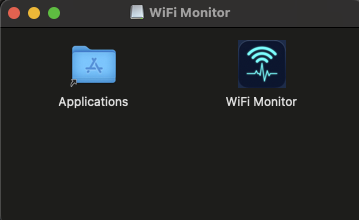
DMG installs require a one-time security approval on macOS Sequoia (see Step 2 below).
If you installed via the Installer package, skip this step — the app launches without any security prompts.
If you installed via DMG, macOS will show this dialog the first time:
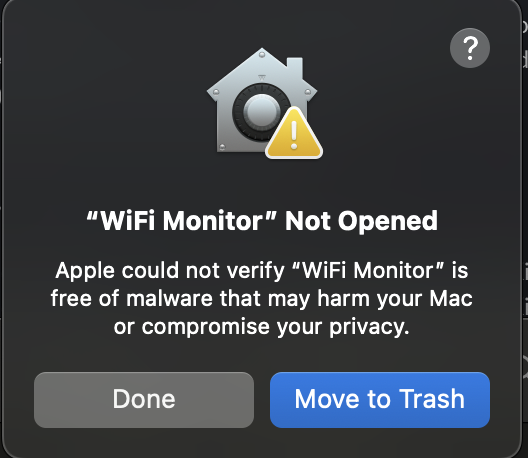
Click Done (not Move to Trash). Then allow the app using one of the two options below.
Open System Settings → Privacy & Security and scroll down to the Security section. You'll see the app was blocked. Click Open Anyway.
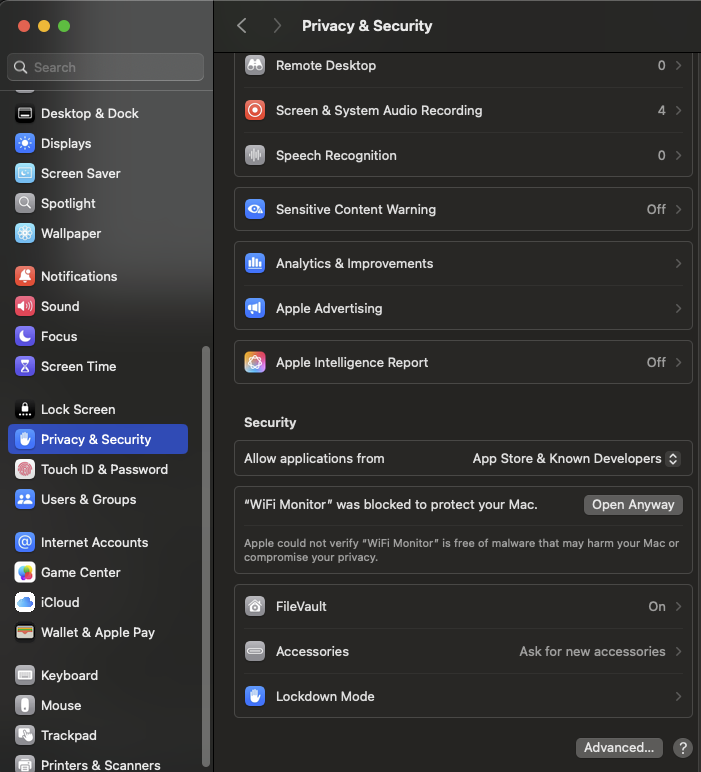
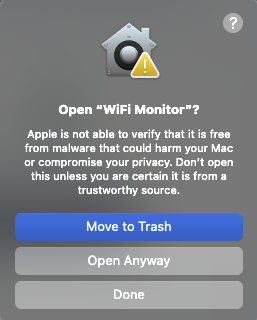
macOS will ask for confirmation. Click Open Anyway again.
Open Terminal and run this command to remove the download quarantine flag:
xattr -d com.apple.quarantine "/Applications/WiFi Monitor.app"Then open the app from Applications normally.
howismywifi will download its dependencies on first launch (Python, measurement libraries). This takes 1-2 minutes and only happens once.
After setup completes, enter a location and network name and start your first test.
Uploaded captures are published publicly, and publishing is the default — the app does not stop to ask, so if you do nothing your captures upload. To turn it off, or to redact your network name and IP first, open Settings (⌘,) before your first test. See Privacy & Data Handling.